WordPress Migration Checklist
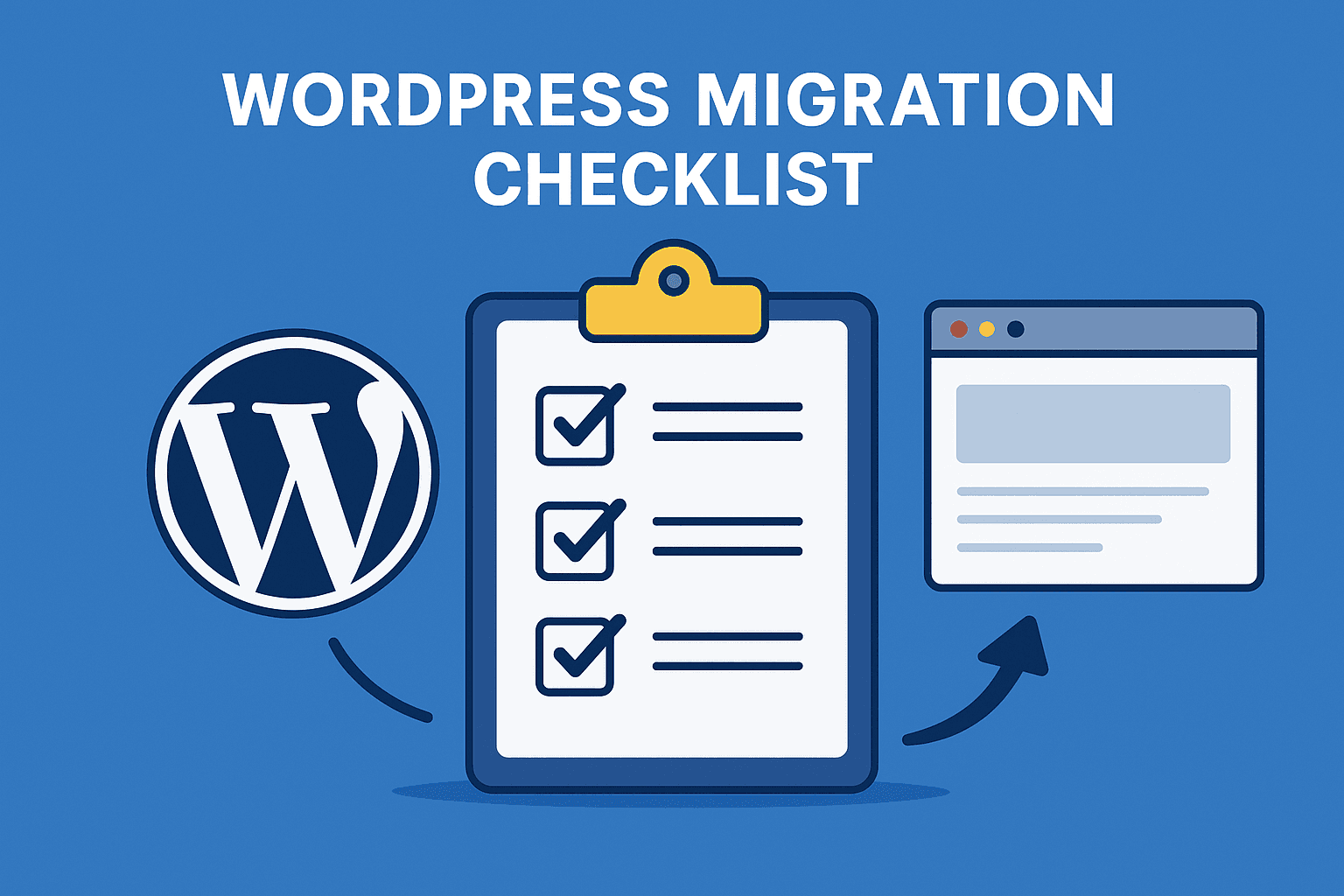
Occasionally, one of our subsidiaries has an agency create a WordPress site, and I am then tasked with deploying it. Additionally, we maintain two environments for each WordPress site: staging and production, and we frequently migrate sites between these environments. I have worked closely with our server administrator to develop the process for deploying these sites. Having migrated dozens of WordPress sites, here is how I approach it.
1. Exporting
On the old environment:
Download files and export your database. If you don't have access to the server, you can use UpdraftPlus to package up the old website. When migrating between our own environments, our server admin uses WP CLI (wp db) to export the database.
2. Prepare the New Hosting Environment
On the new server:
Create a new database and user.
Upload files to the correct root directory (usually
/public_htmlor/htdocs).Import the database via phpMyAdmin or command line. I like to import using the command line since phpMyAdmin is slower and can timeout. WP CLI has a method for importing the database.
Update
wp-config.phpwith the new database credentials and scrub any unwanted configs.
3. Update URLs
If the domain is changing:
Run a search-and-replace in the database to update URLs. I normally use WP-CLI (wp search-replace) for this step. Better Search Replace will also work but first you'll need to get the admin panel working by manually updating some rows in the wp_options database table. I like to test with a dry run because if you make a mistake at this point then you have to re-import the database.
Test the new site after the search replace.
4. Additional Setup (Compliance, Performance, Caching, Security, and Marketing checks)
At this point if you're importing a new website, you'll want to set up some additional things or just verify they are functional:
Ensure terms and privacy policy has been reviewed by your legal team.
Ensure there is a privacy framework in place. I use OneTrust CookiePro for this. You can also find some other solutions on the WordPress marketplace.
Run some accessibility checks with google lighthouse. We also implement AudioEye for added protection.
Verify caching and security measures are in place. We use W3 Total Cache and Wordfence Premium. Other options are available on the WordPress marketplace.
Check what type of marketing tags or containers are installed. Try to consolidate them with Google Tag Manager.
Optionally check if Yoast is installed. If it's not installed, you may want to recommend installing it or another SEO plugin.
Check WordPress site health page. This can help you identify any server configuration issues.
5. Redirect
Set up 301 redirects from old URLs to new ones to preserve SEO. I use Urllo for this.
6. Post-Migration Cleanup
Finally, I wrap up with:
Verifying SSL is active and configured.
Regenerating permalinks.
Emptying server cache.
Submitting the updated sitemap to Google Search Console.
Verifying or setting up email.
The Bottom Line
Migrating WordPress doesn’t have to be stressful. With a solid checklist, you can back up, move, test, and launch your site without losing data or visitors. Think of it like moving into a new home: the more organized you are before the moving truck arrives, the smoother everything goes once you get there.
Updated on 1-30-2026
Related Posts
Building Aurora Art Hub: From Starter Template to Creator Platform
A creator platform for artists to publish and manage their work.

CI/CD with GitHub Actions
Self-hosted runners across staging and production servers
Easy Auth in React
Two quick ways to add auth in React without building from scratch
Before You Go Live
When planning skips compliance, marketing, and data security.
Using Next.js in a Legacy Apache Environment
Next.js landing page with performance optimization and legacy Apache deployment.
Introducing My Blog Built with Contentful
Integrating Contentful With Next.js